Exchange 2003 Queue Directory Corrupt

Alert: “The Microsoft Exchange Information Store service terminated with service-specific error 0 (0×0)”.The error seems to simple and everyone would just suggest to start the service back. But the root cause was different.

One of our colleague started working on the alert and here is the chronology of steps followed in resolving the issue. found that the Information Store service was in stopped state and started the service. Started verifying queues , encountered error stating that “Default SMTP Virtual Server is unavailable”. Verified and found that SMTP Service was in started mode.

Escalated call to me and I’ve started working on the issue.

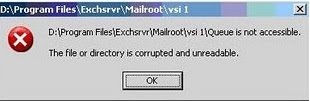
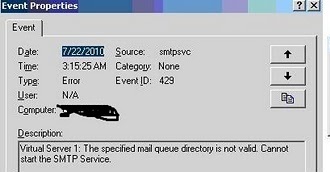
Upon further analysis, found that the SMTP Virtual Instance was stopped in ESM (Exchange System Manager). Tried to start the instance, encountered error stating that “Queue Directory is corrupted , hence the instance could not be started”.

Error logged in Event log & Error pop-up when accessed Queue Directory from explorer.
Executed following Steps to resolve issue:

1. Uninstalled existing Antivirus (AVG)

2. Executed chkdsk on volume in which the exchange database is stored. Found disk errors.

3. Executed chkdsk /f on the volume and restarted the server

4. Created new Queue Directory and pointed the path from ESM to the new folder.

5. Started SMTP Virtual Instance & Information Store Services.

Mails started flowing fine.

Happy Learning!!!

Outlook Web Access (OWA) inaccessibleWMI Corrupt

Issue Statement: OWA is not working with an error “outlook web access did not initialize

Resolution:

 Checked the Event logs found an event id 10005

DCOM got error “The service cannot be started, either because it is disabled or because it has no enabled devices associated with it. ” attempting to start the service winmgmt with arguments “” in order to run the server: {8BC3F05E-D86B-11D0-A075-00C04FB68820}

 Tried to open wmimgmt.msc but got an error

Number: 0x8004100a
Facility: WMI
Description: Critical error

 Re-Register all WMI DLLs. Stop and Disabled the WMI service from the command prompt “for /f %s in (‘dir /b /s *.dll’) do regsvr32 /s %s”

 Then we ran the following commands

wmiprvse /regserver”
wmimgmt /clearadap
wmimgmt /resyncperf.

 Downloaded and installed WMIDiag.exe from the following link http://www.microsoft.com/downloads/details.aspx?familyid=d7ba3cd6-18d1-4d05-b11e-4c64192ae97d&displaylang=en

 Checked the log and found

Checked the logs and found the following information:

.1522 11:49:49 (0) ** ERROR: WMIDiag detected issues that could prevent WMI to work properly!.

.1523 11:49:49 (0) **

.1524 11:49:49 (0) ** WMIDiag v2.0 ended on Saturday, May 29, 2010 at 11:49 (W:31 E:12 S:1).

.1453 11:49:49 (0) ** WMI service DCOM setup: ………………………………………………………………………………… OK.

.1454 11:49:49 (0) ** WMI components DCOM registrations: ………………………………………………………………………. OK.

.1455 11:49:49 (2) !! WARNING: WMI ProgID registrations missing: ……………………………………………………………….. 7 ProgID(S)!

 From command prompt ran successfully ran the following command ‘REGSVR32.EXE C:\WINDOWS\SYSTEM32\WBEM\WBEMDISP.DLL’ as recommended in the logs

 Copied all the 54 Dll files from a working server and put them under c:\windows\system32\wbem

 Ran the following commands again

sc config winmgmt start= disabled
net stop winmgmt /y
cd %windir%\system32\wbem
for /f %s in (‘dir /b *.dll’) do regsvr32 /s %s
regsvr32 %windir%\system32\tscfgwmi.dll
wmiprvse /regserver
winmgmt /regserver
net start winmgmt
for /f %s in (‘dir /b *.mof *.mfl’) do mofcomp %s

 Able to access outlook web access successfully